Chaos Camera Lab
Turn real scenes into collectible color recipes.
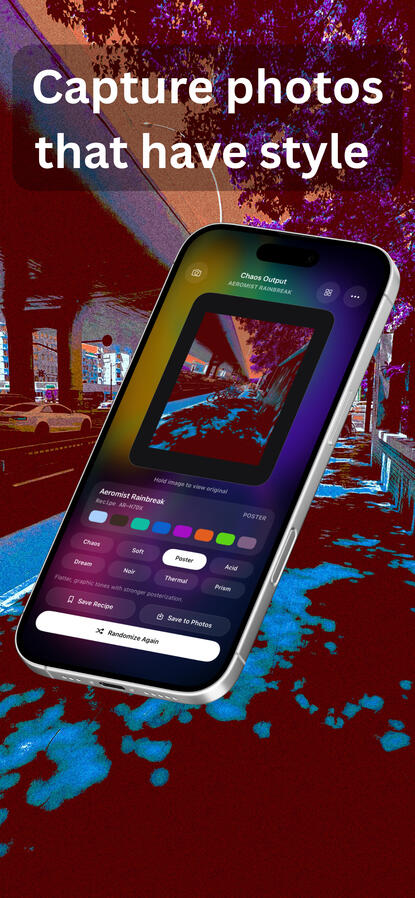
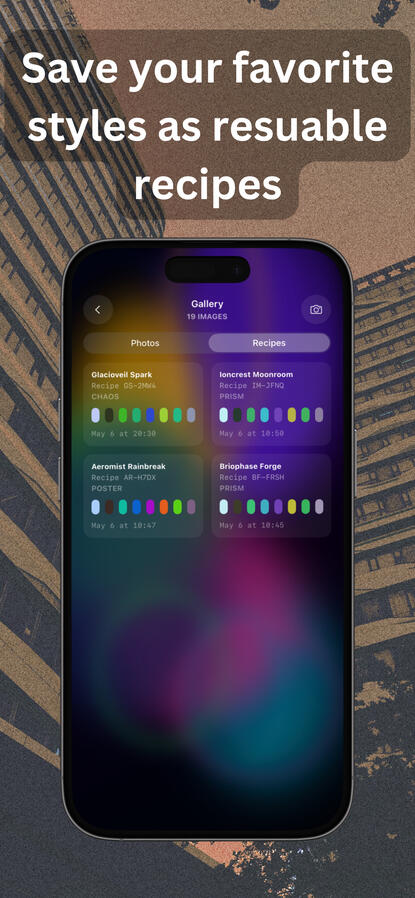
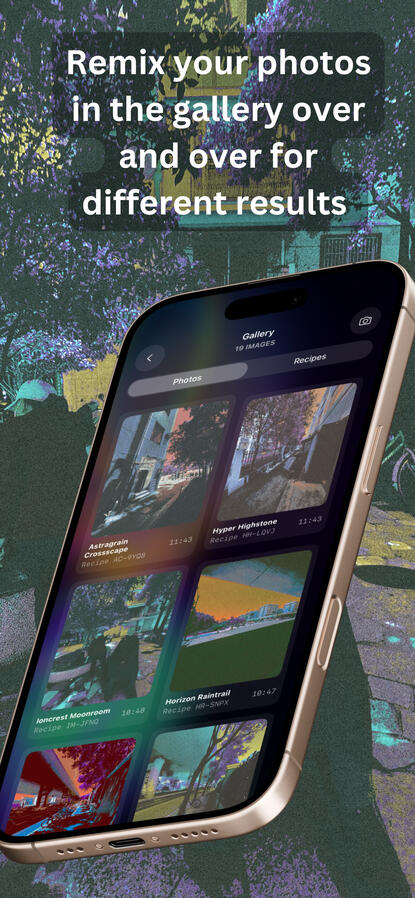
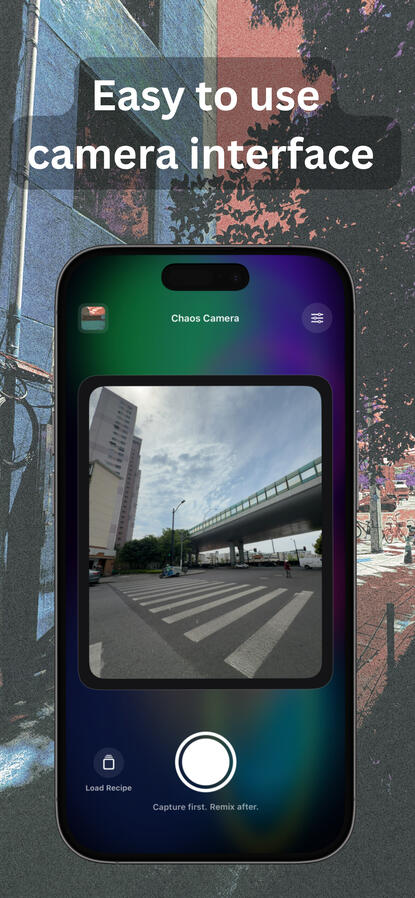
Chaos Camera Lab is a creative camera app for iPhone. Take a photo, generate a chaos version with remapped colors and grain, then save the result or save the recipe for later. Recipes can be loaded before the next shot, so the same look can influence a completely different scene.Key Features
4:5 live camera framing
Chaos presets with different color behaviors
Seeded recipe system with name, code, and palette
Save recipes and reload them for future captures
Save finished images to Photos
Local gallery for photos and recipesHow It Works
Frame a scene in the 4:5 live view.
Take a photo.
Chaos Camera Lab remixes the image into a new color recipe.
Hold on the image to compare it with the original.
Save the photo, save the recipe, or load a saved recipe for the next shot.Recipe Explanation
Every remix generates a recipe with:a name
a short code
a preset
a palette
The same photo plus the same recipe recreates the same remix. A different photo plus the same recipe applies the same color logic to a new scene.Support
For support, questions, or bug reports, contact us by click the email button, or email us at [email protected]
Chaos Camera Lab FAQ
What does Chaos Camera Lab do?
Chaos Camera Lab captures a photo and remaps its colors into a new seeded recipe while preserving the structure of the original scene.What is a recipe?
A recipe is a saved look. It includes a name, a code, a preset, and a palette. You can save it and load it again before taking another photo.If I use the same recipe twice, will I get the same result?
If you use the same photo and the same recipe, you will get the same remix result.If you use a different photo with the same recipe, you will get a different image that uses the same color logic.What is the difference between saving a photo and saving a recipe?
Saving a photo stores the finished output image.Saving a recipe stores the reusable look that created it.Does the app need internet access?
No. Chaos Camera Lab works locally on-device for capture, remixing, recipes, and gallery storage.Does the app keep my photos?
The app keeps photos and recipes only if you save them in the in-app gallery. Saved images exported to Photos are stored in your Photos library.Why does the app ask for camera access?
Camera access is required to capture images inside the app.Why does the app ask for Photos access?
Photo Library Add access is used only to save finished images to your Photos library.Can I compare the remix with the original photo?
Yes. On the remix screen, press and hold the image to view the original.Can I reuse a saved recipe for the next shot?
Yes. Load a recipe before capture and the next photo will use that loaded recipe.
Chaos Camera Lab Privacy Policy
Effective Date: 05/06/2026
App: Chaos Camera Lab
Developer: Ryan Arthur Walker
Contact: [email protected]Privacy Policy
Chaos Camera Lab respects your privacy.Information We Collect
Chaos Camera Lab does not require account creation and does not intentionally collect personal information from users.The app may access the following only when you allow it:Camera: to capture photos inside the app
Photo Library Add Access: to save finished images to your Photos library
How Your Data Is Used
Photos captured in Chaos Camera Lab are processed on-device to create chaos images and recipes.Recipes and gallery items saved inside the app are stored locally on your device.Chaos Camera Lab does not upload your photos, recipes, or gallery items to a remote server.Analytics and Tracking
Chaos Camera Lab does not use third-party analytics, advertising SDKs, or cross-app tracking.Data Sharing
Chaos Camera Lab does not sell, rent, or share your personal data with third parties.If you choose to save an image to your Photos library, that image is stored according to your device and iCloud Photos settings, which are controlled by Apple and your own account settings.Data Retention
Saved recipes and gallery items remain on your device until you delete them or remove the app.Security
Because Chaos Camera Lab stores its working data locally on-device, the security of that data depends primarily on your device security and Apple’s platform protections.Your Choices
You can:deny or revoke camera access in iPhone Settings
deny or revoke photo library access in iPhone Settings
delete saved recipes and gallery items inside the app
remove the app to delete its locally stored app data